
If you’ve ever searched for a free screen recorder that actually works without watermarks, time limits, or annoying popups, OBS Studio is the answer.
Whether you want to record gameplay, create tutorials, or capture your screen for presentations, OBS screen recording covers every use case without costing a single cent.
This complete OBS Studio beginner guide walks you through everything: downloading the software, configuring the best video and audio settings, capturing your display or a specific window and recording in crisp 1080p with no lag.
By the end, you’ll know exactly how to record your screen with OBS like a pro, even if you’ve never opened the software before.
What is Open Broadcaster Software screen recording Studio?
OBS Studio (Open Broadcaster Software) is a free, open-source screen recorder and live streaming tool available for Windows, macOS and Linux.
It’s one of the most powerful screen recording tools available, and it costs nothing.
Unlike basic screen capture tools built into Windows or Mac, OBS gives you full control over:
- Video resolution, frame rate, and bitrate
- Multiple audio sources (microphone + system audio simultaneously)
- Scene switching, overlays, and source mixing
- Recording in multiple formats (MKV, MP4, MOV)
It’s the go-to choice for gamers, educators, content creators, and anyone who needs high-quality screen recordings without paying.
Open Broadcaster Software Screen Recording Studio Download and Setup
Getting started with OBS is straightforward. Here’s the OBS Studio setup guide from scratch:
Step 1: Download OBS Studio
Visit the official website at obsproject.com and download the installer for your operating system (Windows, macOS or Linux). The installer is free and safe no bundled software.
Step 2: Run the Installer
Once downloaded, run the file (Windows), follow the on-screen prompts, accept the license agreement, choose your install location and click Finish. OBS Studio will launch automatically if you leave the checkbox ticked.
Step 3:Auto-Configuration Wizard
When OBS opens for the first time, it offers an auto-configuration wizard. For screen recording (not streaming), select Optimize just for recording. OBS will test your system and recommend a starting configuration a great feature for beginners.
How to Record Your Screen With OBS
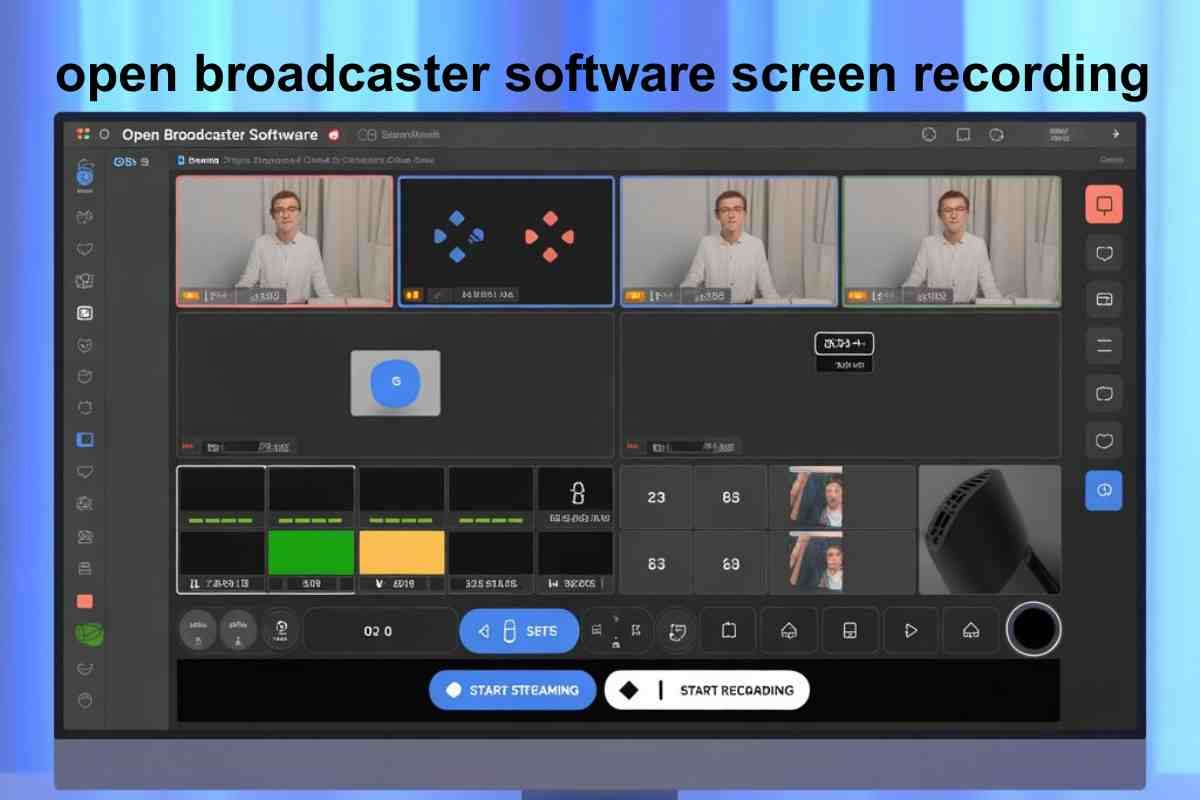
This is the core of any OBS recording tutorial. OBS uses a system of Scenes and Sources. A Scene is like a layout, and Sources are the things you capture inside it (your screen, webcam, audio, etc.).
Setting Up Display Capture
OBS display capture setup lets you record your entire monitor, everything visible on screen.
In the Sources panel at the bottom, click the “+” button.
- Select Display Capture.
- Name it (e.g., “My Screen”) and click OK.
- Choose your monitor from the dropdown if you have multiple displays.
- Click OK your screen now appears in the OBS preview window.
Setting Up Window Capture
The OBS window capture guide is for when you only want to record one specific application like a browser, game or editing tool, without capturing the rest of your desktop.
- Click “+” in the Sources panel.
- Select Window Capture.
- Choose the application window from the dropdown.
- Click OK.
Window Capture is ideal for tutorials, software demos and game recording where you don’t want your desktop icons or notifications appearing on screen.
Open Broadcaster Software screen recording audio recording settings.
Nothing ruins a recording faster than bad audio. Here’s how to configure OBS audio recording settings correctly.
Microphone Input
- Go to Settings → Audio.
- Under Mic/Auxiliary Audio, select your microphone from the dropdown.
- In the main OBS window, the Audio Mixer at the bottom shows your mic level aim for the green/yellow zone when speaking, never red.
Desktop/System Audio
To capture your computer’s sound (game audio, music, video playback):
- In Settings → Audio, set Desktop Audio to your default output device.
- The Audio Mixer will show a second bar for desktop audio.
Noise Suppression (Optional but Recommended)
Click the gear icon next to your microphone in the Audio Mixer → select Filters → add Noise Suppression. This removes background hiss and keyboard noise a must for clean voiceovers.
For screen recording with audio OBS, always check levels by doing a 10-second test recording before your main session.
Open Broadcaster Software screen recording video recording settings.
This is where most beginners go wrong. Poor settings cause blurry video, dropped frames, or massive file sizes. Here are the best OBS video recording settings for most users in 2026.
Output Settings
Go to Settings → Output and switch Output Mode to Advanced for full control.
| Setting | Recommended Value |
| Encoder | NVIDIA NVENC H.264 (GPU) or x264 (CPU) |
| Rate Control | CQP (GPU) or CRF (CPU) |
| CQ Level / CRF | 18–23 (lower = better quality) |
| Keyframe Interval | 2 |
| Preset | Quality |
| Recording Format | MKV (safest) |
Why MKV over MP4? If OBS crashes mid-recording, an MP4 file becomes corrupted and unrecoverable. MKV saves data as it records you’ll still have your footage. You can convert MKV to MP4 later using File → Remux Recording inside OBS.
OBS 1080p Recording Settings
For crystal-clear OBS 1080p recording settings, go to Settings → Video and configure:
- Base (Canvas) Resolution: 1920×1080
- Output (Scaled) Resolution: 1920×1080
- Downscale Filter: Lanczos (sharpest)
- Common FPS Values: 60 fps (for gaming or motion-heavy content), 30 fps (for tutorials and presentations)
OBS No Lag Recording Settings
Laggy recordings are usually caused by the CPU being overloaded by OBS encoding. Here’s how to achieve OBS no lag recording settings:
Use Hardware Encoding
If you have an NVIDIA GPU, use NVENC H.264 as your encoder instead of x264. This offloads encoding to your graphics card, freeing your CPU entirely.
For AMD users, select AMF/VCE. For Intel, use QuickSync.
Lower the encoder preset.
If you must use x264 (CPU encoding), set the Preset to veryfast or superfast. You lose a tiny amount of quality but gain significant performance.
Close Background Applications
Before recording, close browsers with many tabs, Discord video, and any other programs that consume GPU or CPU resources. Task Manager is your friend.
Recommended System Settings for Smooth Recording
- Set OBS process priority to Above Normal (Settings → Advanced → Process Priority)
- Disable Windows Game Mode if it interferes with OBS
- Ensure your PC isn’t on a battery-saving power plan use High Performance mode
How to Record Gameplay With OBS
Record gameplay with OBS using the Game Capture source it’s more efficient than Display Capture for games because it hooks directly into the game’s render pipeline.
- Add a new source → select Game Capture.
- Set Mode to Capture specific window and choose your game.
- Enable Allow Transparency if needed.
- Start recording OBS captures the game directly with minimal performance impact.
For high-FPS games (like CS2, Valorant or Fortnite), set your FPS to 60 in open broadcaster software screen recording Video settings and use NVENC encoding. This ensures your recording is smooth without tanking in-game performance.
OBS Hotkeys: Control Recording Without Switching Windows
One of the most useful features for any open broadcaster software screen recording tutorial for beginners 2026 to cover is hotkeys. Setting up keyboard shortcuts means you never have to minimize your game or app to start/stop recording.
Go to Settings → Hotkeys and assign:
- Start Recording: Ctrl + R
- Stop Recording: Ctrl + Shift + R
- Pause Recording: Ctrl + P
This work globally open broadcaster software screen recording, doesn’t even need to be the active window.
Where are my Open Broadcaster software screen recording Recordings Saved?
To change the folder, go to Settings → Output → Recording → Recording Path and browse to your preferred location.
For large recordings (gaming sessions, long tutorials), make sure the destination drive has enough space. At 1080p60 with high bitrate, OBS can generate 2–5 GB per hour.
Is Open Broadcaster Software screen recording the best free screen recorder for Windows?
OBS Studio is widely considered the best screen recorder for Windows for users who want full control and zero cost. It’s also one of the top choices across macOS and Linux.
That said, it does have a learning curve. If you need something simpler for occasional recordings, tools like Xbox Game Bar (built into Windows) or Snipping Tool work for basic needs.
But for anyone recording regularly, streaming, or producing content, open broadcaster software screen recording is unmatched as a free screen recording software option.
Common OBS Problems and Quick Fixes
| Problem | Fix |
| Black screen on Display Capture | Run OBS as Administrator; check GPU settings |
| Recording is laggy | Switch to hardware encoder (NVENC/AMF) |
| No audio in recording | Check Desktop Audio in Settings → Audio |
| File corrupted after crash | Use MKV format instead of MP4 |
| OBS uses too much CPU | Enable hardware encoding; lower encoder preset |
Final Thoughts
Open Broadcaster Software is one of the most powerful free tools for recording your PC screen without compromising on quality. With the right setup, you can capture smooth 1080p video, crisp audio, and even high-performance gameplay all without spending anything.
To get the best results, it’s recommended to record in MKV format to avoid file corruption, use hardware encoding like NVENC or AMF for lag-free performance, set up hotkeys for quick control, and match your resolution and FPS to your content type.
Whether you’re a beginner learning the basics or an experienced user optimizing your workflow, the open broadcaster software screen recording Studio provides everything you need for professional screen recording at no cost.
FAQs
Is the Open Broadcaster Software screen recording Studio completely free?
Yes. Open Broadcaster Software screen recording Studio is 100% free and open-source. There are no hidden costs, no watermarks, and no time limits on recordings.
Can I record screen with audio using open broadcaster software screen recording?
Absolutely. OBS captures both microphone audio and desktop/system audio simultaneously. Configure both in Settings → Audio and monitor levels in the Audio Mixer.
What is the best format to save open broadcaster software screen recording recordings?
MKV is the safest format it prevents file corruption if OBS crashes. You can convert it to MP4 anytime using OBS’s built-in Remux Recording feature.
Why does my open broadcaster software screen recording recording look blurry?
This usually means your output resolution is being downscaled. Set both Base Resolution and output resolution to 1920×1080 in Settings → Video, and use Lanczos as your downscale filter.
Does open broadcaster software screen recording affect gaming performance?
It depends on your hardware. Using hardware encoding (NVENC for NVIDIA, AMF for AMD) significantly reduces performance impact. With a modern GPU, most users see less than 5% FPS drop while recording.
How do I record just one window in open broadcaster software screen recording?
Use Window Capture instead of Display Capture. Add it as a source and select your target application. Only that window will appear in the recording.
What are the best open broadcaster software screen recording settings for beginners?
Use the Auto-Configuration Wizard on first launch. For manual setup: 1080p resolution, 60 fps, NVENC encoder, MKV format, and CQP rate control with a value of 20.