
Are you a student, parent, or staff member looking to navigate the MyOLSD portal effortlessly?
Whether it’s checking assignments, exploring school lunch menus, or managing employee resources, this guide will answer all your questions about MyOLSD, the online hub of the Olentangy Local School District.
By the end, you’ll feel confident logging in, exploring your dashboard, and using all its features efficiently.
What is MyOLSD and Who Can Use It?
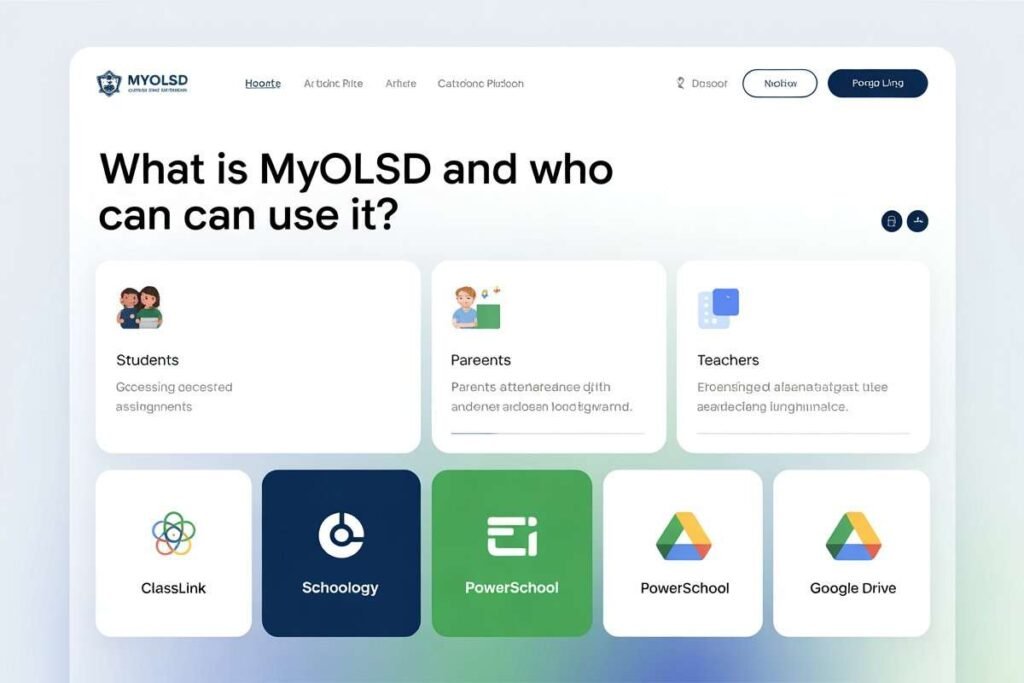
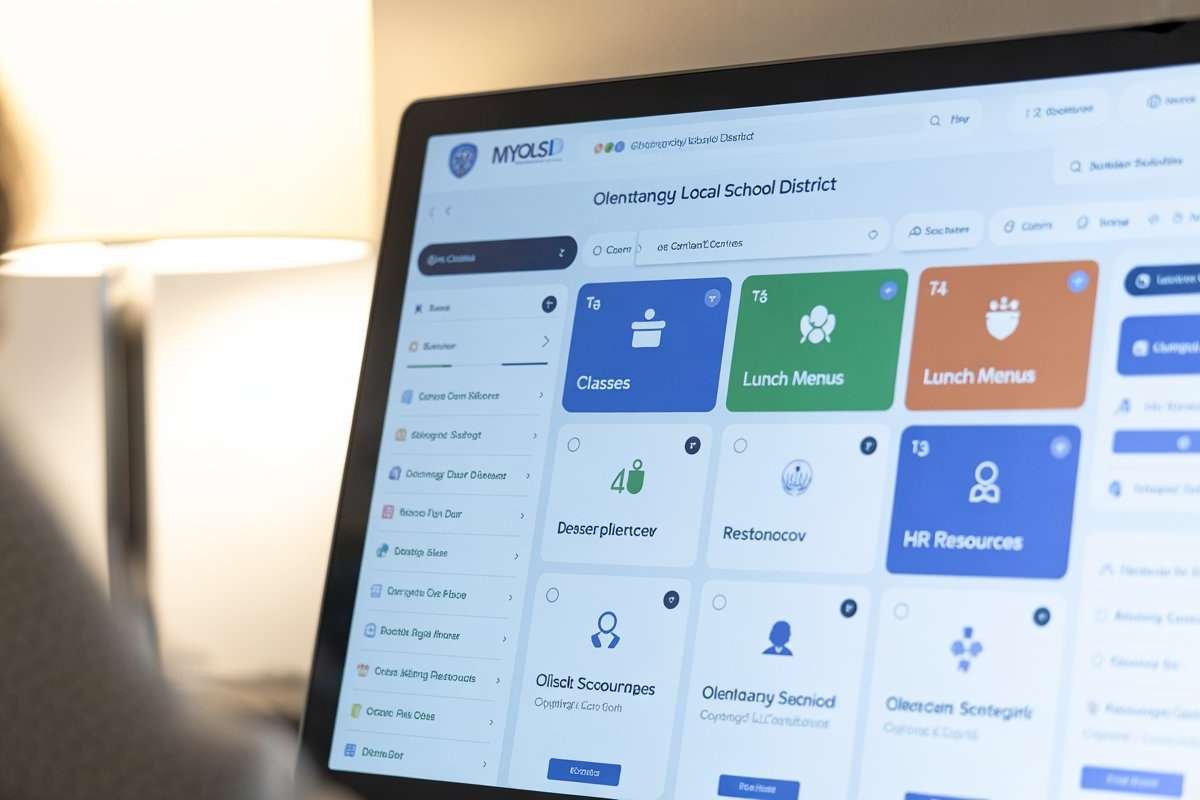
MyOLSD is the official online portal for the Olentangy Local School District, designed to provide students, parents, and teachers with a centralized platform for school communication, learning management, and administrative tasks.
- Students can access classes, submit homework, and check grades.
- Parents can monitor attendance, school announcements, and lunch programs.
- Teachers and employees can manage lessons, communicate with families, and access HR resources.
The portal uses ClassLink single sign-on, allowing seamless access to multiple systems like Schoology, PowerSchool, and Google Drive from one dashboard.
How Do I Login to MyOLSD Securely?
Logging in to MyOLSD is straightforward, but knowing all available methods ensures you always have access.
Can I Login to MyOLSD Using a Web Browser?
Yes! Follow these steps for myolsd.us login from any device:
- Open a browser (Chrome, Edge, Firefox, Safari).
- Visit https://launchpad.classlink.com/olentangy.
- Click Sign In With SAML.
- Enter your username (student ID + first initial + last name) and password (same as your school email).
- Click Sign In to access your dashboard.
This method ensures secure access and full functionality, from digital learning to school announcements.
What is QuickCard Login for MyOLSD?
QuickCard login allows you to access the portal without typing credentials:
- Open the MyLSD login page.
- Click Sign In Using QuickCard.
- Allow camera access and scan your QR code.
- You’re instantly logged in to your dashboard.
This is especially helpful for younger students or for quick access on mobile devices.
Can I Login to MyOLSD Using a Chromebook?
Absolutely. If your school issued a Chromebook:
- Turn on the Chromebook and enter your school email credentials.
- You will be automatically logged into the MyOLS portal.
This ensures easy access to assignments, grades, and digital learning tools without extra logins.
What Features Can I Access in the MyOLSD Dashboard?
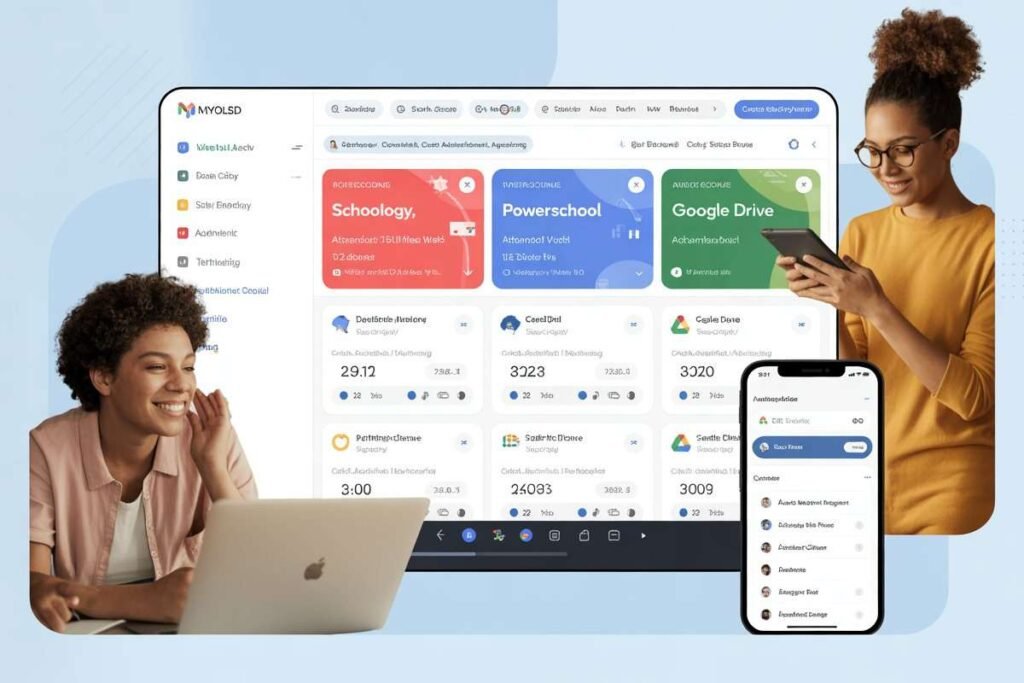
Once logged in, the MyOLSD dashboard acts like a central hub for all school-related resources.
How Do Students Use MyOLSD for Learning?
- Schoology: Manage courses, submit assignments, view grades, and participate in class discussions.
- PowerSchool: Track attendance, schedules, report cards, and transcripts.
- Google Drive & Digital Textbooks: Store homework, collaborate on projects, and access learning materials anytime.
Students benefit from easy navigation, real-time updates, and a user-friendly interface.
What Tools Do Parents Get on MyOLD?
- Monitor grades and attendance
- Access school lunch programs and menus
- Communicate directly with teachers and school staff
- Stay informed about announcements, events, and school updates
This ensures parents remain engaged and proactive in their child’s education.
How Can Employees and Teachers Benefit?
- Human Resources access: View salary, compensation, and benefits
- Manage lessons and class schedules
- Communicate with parents and students
- Access digital learning tools and portals seamlessly
Employees enjoy transparent workflows, simplified HR processes, and single sign-on convenience.
Why Is MyOLSD Important for Student Success?
MyOLSD helps students:
- Stay organized with assignment tracking
- Receive instant feedback from teachers
- Access learning materials anytime, improving digital learning outcomes
- Engage in educational technology tools to strengthen skills
Parents and teachers benefit from improved communication, transparency, and easy access to important school data.
What Are Common MyOLSD Login Problems and How Can I Fix Them?
What if I Forgot My Password for MyOLSD?
- Use the same password as your school email.
- If forgotten, contact the OLSD IT Helpdesk immediately.
Why Is the MyOLD Page Not Loading?
- Clear your browser cache
- Ensure you are using an updated browser like Chrome or Edge
- Check your internet connection and disable interfering browser extensions
What Should I Do if My Account is Locked?
- Call OLSD IT Support: 740-657-4357
- Email the service desk: service_desk@olsd.us
These fixes ensure uninterrupted access to the portal’s learning and administrative features.
How Can I Access MyOLSD on Mobile Devices?
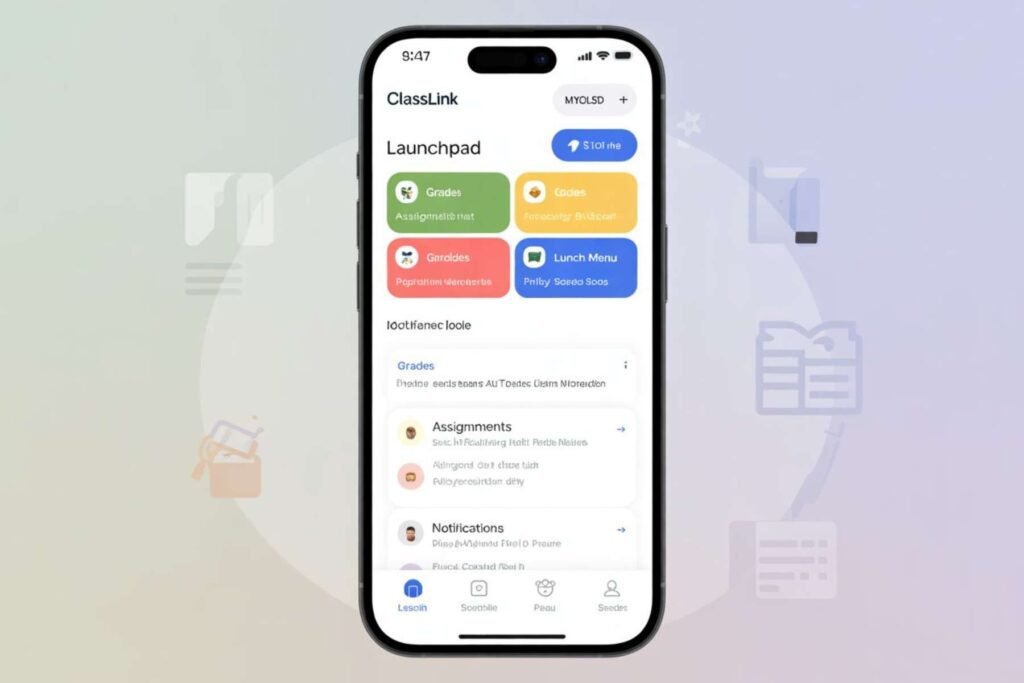
The ClassLink LaunchPad mobile app allows you to:
- Log in using myold login credentials
- Access dashboard features on the go
- Check grades, assignments, lunch menus, and notifications
- Keep credentials secure with automatic logout after use
This makes digital learning and school management easy and convenient for students, parents, and employees.
Tips to Maximize Your MyOLSD Experience
- Bookmark the login page for fast access
- Check grades and assignments regularly
- Enable notifications for school updates
- Keep your password secure and log out after each session
- Explore educational technology tools for extra learning support
Conclusion
MyOLSD serves as a central hub for learning, communication, and administrative tasks, making school management easier and more efficient for students, parents, and staff alike.
By providing access to grades, assignments, attendance records, lunch programs, and HR resources all in one place, it streamlines daily school activities and keeps everyone informed.
Students can stay organized, track their progress, and engage with digital learning tools, while parents can monitor their child’s academic performance and stay updated on school announcements.
Teachers and staff benefit from simplified workflows, easier lesson management, and transparent HR access.
By exploring the portal’s features regularly and staying proactive with updates and notifications, users can make the most of this powerful tool, ensuring a more organized, connected, and successful educational experience for the entire school community.
FAQs
Can I reset my MyOLSD password myself?
Yes, you can reset it through your school email or contact the OLSD IT Helpdesk for assistance.
Is MyOLD accessible outside school hours?
Absolutely, the portal is available 24/7 on any internet-connected device.
Can I customize my MyOLSD dashboard?
Yes, students and staff can organize widgets and links for quicker access to tools they use most.
Are school announcements pushed through OLSD?
Yes, all updates, alerts, and announcements appear in real-time on the dashboard.
Can I submit assignments late on MyLSD?
Submission depends on teacher settings, but most assignments can be uploaded until the deadline.
Is MyOLD compatible with smartphones and tablets?
Yes, the ClassLink LaunchPad app allows full access on iOS and Android devices.
How do I track my lunch balance and menu?
Parents and students can view daily menus and account balances directly in the dashboard.
Who do I contact for technical issues with MyOLSD?
OLSD IT Support can be reached by phone at 740-657-4357 or email service_desk@olsd.us.